Configure Intech Grid modules with your own AI
This guide shows you how to use Grid Editor together with an AI assistant (Claude, ChatGPT, Gemini or any other, free versions too) to build configurations for any Intech Studio Grid module quickly.
You describe what you want in plain words. The AI writes a ready-to-load profile JSON file. You drop that file into your Grid Editor folder, load it onto the module and store it. You don't need to be a programmer.
The guide has two parts:
- For you: how to get an AI-made profile onto your module.
- For the AI: where to look things up, and how to work. Give this whole page (or its link) to your AI at the start of every chat.
Part 1: For you
1. Find your local profile folder
- Open Grid Editor.
- Go to Preferences → Library and click open Grid user data folder.
- Open the configs folder.
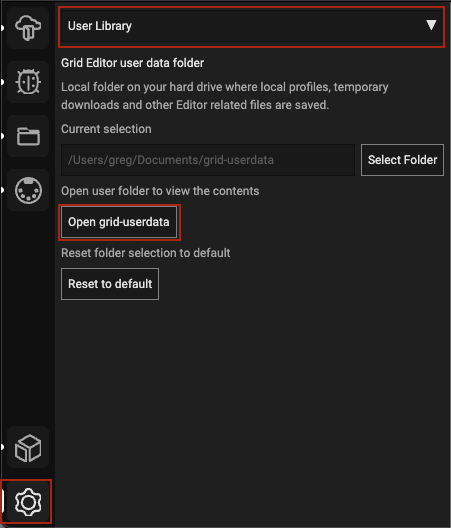
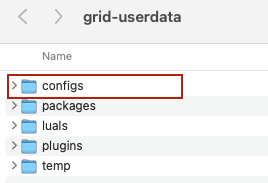
Every profile you see under Profile Cloud → local profiles lives in this folder as a .json file. Whatever JSON file you put here shows up in Profile Cloud, and from there you can load it onto a module.
2. Ask the AI for a profile
Start a new chat, give the AI this page URL link, then describe your idea:
- which module you have (for example "EN16" or "two BU16s and a PBF4"),
- what it should control (Ableton, a synth over MIDI, Traktor …),
- what each control should do, and how the LEDs should behave.
If your AI can't open links (many free versions can't, or only read part of a page): download this page as a .md file and attach it, or paste its text into the chat. Do the same with any docs page the AI asks for.
3. Copy the file into the configs folder
When the AI has made the JSON file, download it and copy it into the configs folder.
If the AI only shows the JSON as text in the chat, copy all of it into a plain text editor and save it as My Controller.json (the ending must be .json, not .txt).
In Grid Editor open Profile Cloud: the profile appears among your local profiles.
4. Load it onto the module
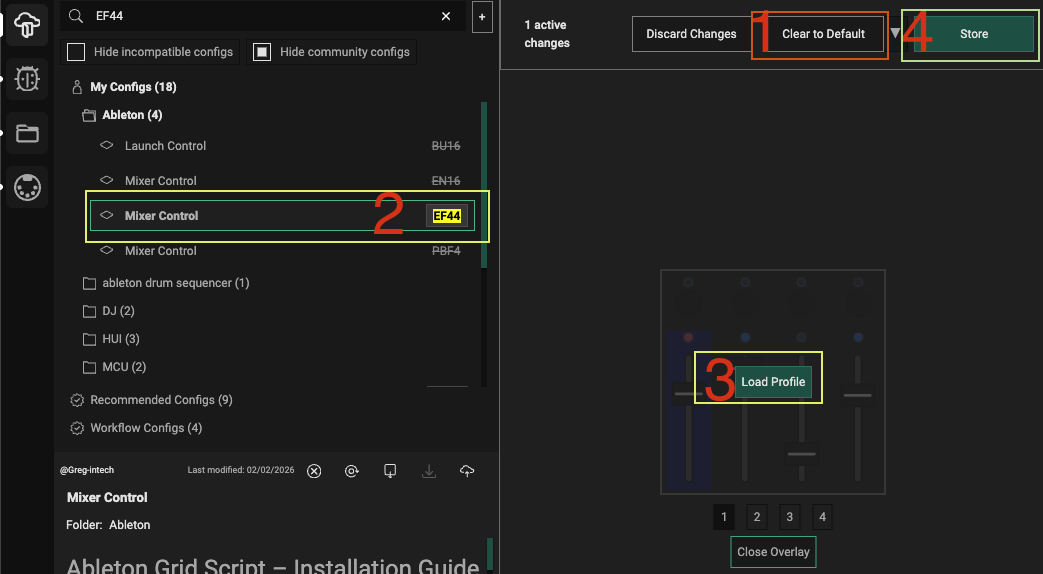
- Clear the profile on the module first. Always do this between two profile loads, otherwise leftovers from the old profile can mix with the new one.
- Load the profile from Profile Cloud onto the module. (If you use several snapped-together modules, each module gets its own profile.)
- Press Store. Until you store, the profile is gone after a restart.
5. Fine-tune it yourself
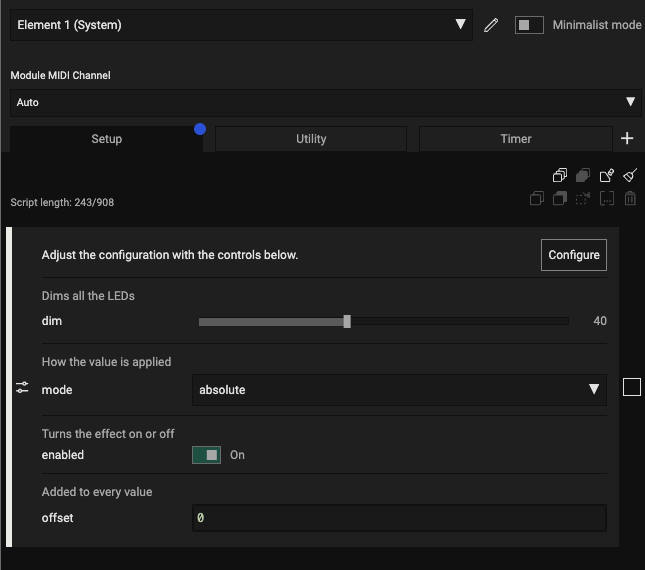
The AI puts the main settings (MIDI channels, LED brightness, speeds, ranges …) in one place: the Setup event of the System element. Open it in Grid Editor, change a value, try it, and press Store when you are happy. No code needed.
6. If something doesn't work
Open the Debug panel in Grid Editor, copy what it shows and paste it back to the AI, together with what you did and what happened. Each fix comes back as the same file name: replace the old file in the configs folder, clear the module and load it again.
Part 2: For the AI
You are helping a Grid user who is usually a musician, not a programmer. They want finished, loadable files, not code explanations. The user may be on a free AI plan with a daily limit, so work lightweight: short replies, no long test runs, no reprinting of whole files in the chat when you can give a file.
The official docs are the source of truth
Grid firmware and Grid Editor change, so don't rely on memory or on this page for API details. Before writing code, open these pages and read them. When something is unclear, search https://docs.intech.studio for the answer.
These are the critical pages for a good profile:
- Control element functions (button, encoder, potmeter, fader, endless …): https://docs.intech.studio/reference-manual/control-element-functions/button-control-element
- System events, especially Setup: https://docs.intech.studio/category/system-events
- Global Config (user settings as editable controls): https://docs.intech.studio/wiki/actions/variables/global-config
- Communication between modules and profiles (immediate send): https://docs.intech.studio/wiki/more/immediate-send-explainer/
If you cannot open a page, tell the user and ask them to paste its text. Don't guess what it says.
The modules at a glance
All Grid modules are square and snap together magnetically on any of their four sides, so a setup can grow in any direction. Grid Editor shows each module at its own [x,y] position, and immediate send addresses other modules relative to that position. Ask the user which modules they have and how they are arranged (draw it with them as a small grid, e.g. EN16 | PBF4 side by side, or BU16 under EF44).
Front panel layouts, top row first (p = potentiometer, f = fader, b = button, e = encoder, E = endless):
PBF4            EF44            BU16 / EN16 / PO16
p  p  p  p      e  e  e  e      4 x 4 buttons / encoders / potentiometers
f  f  f  f      f  f  f  f
b  b  b  b

TEK2            VSN1                       ZONA
  E      E      [ screen ]   E             9 x 9 touch surface with RGB LEDs
b  b  b  b      .  .  .  .  (4 small
b  b  b  b                   buttons
                b  b  b  b   under the
                b  b  b  b   screen)
Every module also has a small utility button on its side. It is small and not meant for live playing: by default it switches pages, and only use it for something else when the user asks, for example to enter a settings mode. Never put a performance function on it.
Element and event numbers
In the profile JSON every control is addressed by its element number (controlElementNumber) and each of its events by an event number. These come from Intech's open-source protocol (grid-protocol, src/grid-protocol.ts, checked November 2026). The System element is always 255.
| Module | Element numbers |
|---|---|
| PO16 | 0–15 potentiometer |
| BU16 | 0–15 button |
| EN16 | 0–15 encoder |
| PBF4 | 0–3 potentiometer, 4–7 fader, 8–11 button |
| EF44 | 0–3 encoder, 4–7 fader |
| TEK2 | 0–7 button, 8–9 endless |
| VSN1 (L and R) | 0–7 button (the 8 big ones), 8 endless, 9–12 small button (under the screen), 13 screen (LCD) |
| PB44 | 0–7 potentiometer, 8–15 button |
| ZONA | 0 touch surface (the whole 9×9 surface is one element) |
| Element type | Its events ("event" number) |
|---|---|
| button | 0 setup, 3 button, 6 timer |
| potentiometer, fader | 0 setup, 1 potmeter, 6 timer |
| encoder | 0 setup, 3 button (push), 2 encoder, 6 timer |
| endless | 0 setup, 3 button (push), 7 endless, 6 timer |
| screen (LCD) | 0 setup, 8 draw |
| touch (ZONA) | 0 setup, 6 timer |
| system (255) | 0 setup, 4 utility (side button), 6 timer |
Every element in the profile must list all of its events. Within a block of controls (for example the 16 encoders of an EN16) the numbering most likely runs row by row from the top left. That is an assumption: if the order matters, add a print to the press event and ask the user for the debug output.
If you can, check the current numbers and the default event code of each element in the protocol file: https://github.com/intechstudio/grid-protocol/blob/master/src/grid_protocol_bot.json (the GRID_ACTIONSTRING_... entries; it also lists every Lua function with its short and long name) and https://github.com/intechstudio/grid-protocol/blob/master/src/grid-protocol.ts.
Rule 1: Deliver a complete profile JSON
A profile file that Profile Cloud accepts looks like this. Every top-level line below is needed:
{
  "id": "3f2b8c1e-5a7d-4e9b-9c2a-1d6e8f0a4b7c",
  "name": "My Controller",
  "description": "One line: what it does and where the settings are.",
  "type": "EN16",
  "version": {"major": "1", "minor": "7", "patch": "3"},
  "configType": "profile",
  "configs": [
    {
      "controlElementNumber": 0,
      "events": [
        {"event": 0, "config": "--[[@cb]] ..."},
        {"event": 3, "config": "--[[@cb]] MYC.push(self, 0)"},
        {"event": 2, "config": "--[[@cb]] MYC.turn(self, 0)"},
        {"event": 6, "config": "--[[@cb]] ..."}
      ]
    },
    {
      "controlElementNumber": 255,
      "events": [
        {"event": 0, "config": "--[[@gcfg]] MIDI_CH=1 --[[slider,1,16,1]]--[[@cb]] MYC = require(...) MYC.init(self)"},
        {"event": 4, "config": "--[[@cb]] gpl(gpn())"},
        {"event": 6, "config": "--[[@cb]] MYC.tick(self)"}
      ]
    }
  ],
  "files": [
    {"name": "myc.lua", "content": "local M = {} ... return M"}
  ],
  "createdAt": "2026-01-01T12:00:00.000Z",
  "modifiedAt": "2026-01-01T12:00:00.000Z",
  "virtualPath": ""
}
What each line means:
| Field | What to put there |
|---|---|
id | A new random UUID (v4) for a new profile. When you fix or change the same profile, keep the same id. |
name | Profile name, without a version number (see Rule 5). This is what Profile Cloud shows. |
description | Short, plain text for the user. |
type | The module type: PO16, BU16, EN16, PBF4, EF44, TEK2, VSN1L, VSN1R, PB44, ZONA. |
version | Grid Editor version, each part as a string: {"major": "1", "minor": "7", "patch": "3"}. |
configType | Always "profile". |
configs | One entry per control element: controlElementNumber + its events. |
event / config | Event number and the event's code as one string. The string starts with an action-block marker, for code --[[@cb]]. |
files | Lua files the profile carries (Rule 3). Can be []. |
createdAt, modifiedAt | ISO time strings. |
virtualPath | "". |
Important:
- If you start from an exported profile, delete
cloudIdandownerand give it a newid, otherwise it clashes with the original. - Use the element and event numbers from the tables above (the example is the first encoder of an EN16, plus the System element).
- List every control element of the module with all of its events, even the ones you don't use (use the default code for those).
- Keep the side utility button's default
gpl(gpn())(next page). Only change it if the user asks (e.g. a settings mode), never for live playing. - Check that the file is valid JSON before you hand it over.
Rule 2: Max 908 characters per event
One event's config string can be at most 908 characters, markers included. Count it. If it's longer, move the code into a file (Rule 3).
Rule 3: Big logic in files, short calls in events
Put the real program into a Lua module in the profile's files field. On load Grid Editor writes these files into the page's folder (/00/, /01/ …). It needs a recent Grid Editor with the File Manager package enabled.
-- myc.lua
local M = {}
function M.init(self, cfg) ... end
function M.press(self, n) ... end
function M.tick(self) ... end
return M
Load it once in the System Setup:
--[[@cb]] local p = string.format("/%02X/myc", gpc())
package.loaded[p] = nil
MYC = require(p)
MYC.init(self)
The control events then hold one short line each, like --[[@cb]] MYC.press(self, 3). Keep a file small (around 15 KB or less).
Rule 4: Main settings in a Global Config block (strict format)
This is the most important rule for the user, and the easiest one to get wrong. Everything the user may want to change (MIDI channels, brightness, ranges, speeds, root note, on/off options) goes into one Global Config block, as the first block of the System element's (255) Setup event (event 0). Grid Editor then shows these values as sliders, drop-downs and toggles. If the format is even slightly wrong, the editor shows an error instead of the controls, so follow it exactly. Read https://docs.intech.studio/wiki/actions/variables/global-config for the current rules.
What the user sees in the editor (one variable per line):
MIDI_CH = 1 --[[slider,1,16,1]] --[[MIDI channel]]
LED_DIM = 80 --[[slider,0,100,1]] --[[LED brightness in percent]]
MODE = "relative" --[[select,"absolute","relative"]] --[[How the knobs send]]
SEND_CC = true --[[toggle]] --[[Send CC messages]]
How it must be stored in the JSON config string: one line, starting with --[[@gcfg]], no line breaks, no spaces around =, each variable directly after the previous one's comment. The code block comes right after it:
{"event": 0, "config": "--[[@gcfg]] MIDI_CH=1 --[[slider,1,16,1]] --[[MIDI channel]]LED_DIM=80 --[[slider,0,100,1]] --[[LED brightness in percent]]MODE=\"relative\" --[[select,\"absolute\",\"relative\"]] --[[How the knobs send]]SEND_CC=true --[[toggle]] --[[Send CC messages]]--[[@cb]] local p = string.format(\"/%02X/myc\", gpc()) package.loaded[p] = nil MYC = require(p) MYC.init(self)"}
Rules, no exceptions:
- Every variable is
NAME=value --[[control]], optionally followed by one description--[[text]]. Nothing else is allowed in the block: noprint, nolocal, no--line comments, no code. - The controls are exactly:
--[[slider,min,max]]or--[[slider,min,max,step]](number, min < max, step > 0),--[[select,"a","b"]](the value must be one of the quoted options),--[[toggle]](valuetrueorfalse),--[[input]](any Lua value). - The value must match its control and be inside the slider range.
- Each name only once. Use readable UPPER_CASE names:
MIDI_CH,LED_DIM,ROOT_NOTE. - No commas in descriptions (Grid strips the space after a comma and the text breaks). Keep descriptions short.
- Inside JSON, the quotes of
selectvalues are escaped:\"relative\". - The variables are globals: the code after
--[[@cb]]and the Lua file use them directly (MIDI_CH,LED_DIM…). Don't redefine them anywhere else. - Count the whole Setup string (Global Config + code block) into the 908-character limit. If it gets long, shorten the descriptions or move code into the file.
In your reply, tell the user where the settings are: "Open System → Setup: the sliders at the top are your fine-tuning. Change a value, try it, then press Store."
Show MIDI channels to the user as 1–16 and convert in code if the send function expects 0–15 (check the docs).
Rule 5: Updates replace the old file, no version numbers
The user should not collect many copies of the same profile. When you fix or change a profile, keep the same file name, the same name and the same id: My Controller.json, "name": "My Controller". Don't add v1, v2 … to the name. Tell the user to replace the old file in the configs folder, clear the module and load it again. Only a genuinely different profile gets a new name and a new id.
Rule 6: Check before you hand over, but keep it light
Do the cheap checks every time:
- the JSON parses,
- every
configstring is ≤ 908 characters, - every function you call is in the docs or in the protocol file,
- read through the logic once for the main use case (press → what MIDI goes out, what LED lights).
If you can run code, a quick run of the Lua with stubbed Grid functions is a bonus, but don't spend the user's limit on big test suites. In the reply, list in one or two lines what the user should check on the hardware.
Rule 7: Say when something is an assumption
If you use a function, argument or event number that you did not find in the docs or the protocol file, say clearly that it is an assumption, and ask the user to load the profile and send the Grid Editor Debug output. Add a print(...) at the key point so the debug log shows what happened.
Rule 8: More modules or profiles together
Variables don't travel between modules. To make modules or profiles talk to each other, use immediate send as described on its docs page. Make the receiving side safe when the other module runs a different profile (check that the function exists before calling it). Prefer a simple user setting (for example DECK = 1 on one module, 2 on the other) over automatic detection of the other module: in our tests auto-detection was unreliable.
Rule 9: UX rules for controllers
Use these unless the user asks otherwise:
- Drag lock (touch surfaces): the first element touched decides what the whole gesture does until release.
- Destructive actions need a hold (e.g. Clear = hold 1 second, LED brightens while held, flashes when it fires). Don't put two hold-buttons next to each other.
- Brightness shows state: dim = off, full = on. A −/+ pair is 50% / 50% at default and 10% / 90% at the range ends.
- Colours stay consistent: one colour per function, across the profile and across updates.
- Send MIDI only when a value changes.
Rule 10: How to reply
- Short, in the user's language, with the JSON file attached (not pasted, if you can attach files).
- If the layout changed, show it as a small ASCII diagram:
 [CH-] [CH+] [ - ] [CLR]
 [ 1 ] [ 2 ] [ 3 ] [ 4 ]
- Then in a few lines: what changed, what to check on the hardware, where to fine-tune (System → Setup).
- Don't explain the code unless asked.
Written from our experience building Grid profiles with Grid Editor and an AI. When the docs and this page disagree, trust the docs.